You decide what we email you, and every option starts switched off. This article also covers how to report a problem or send us feedback from Settings.
-
Go to Settings → Account → Email preferences.
-
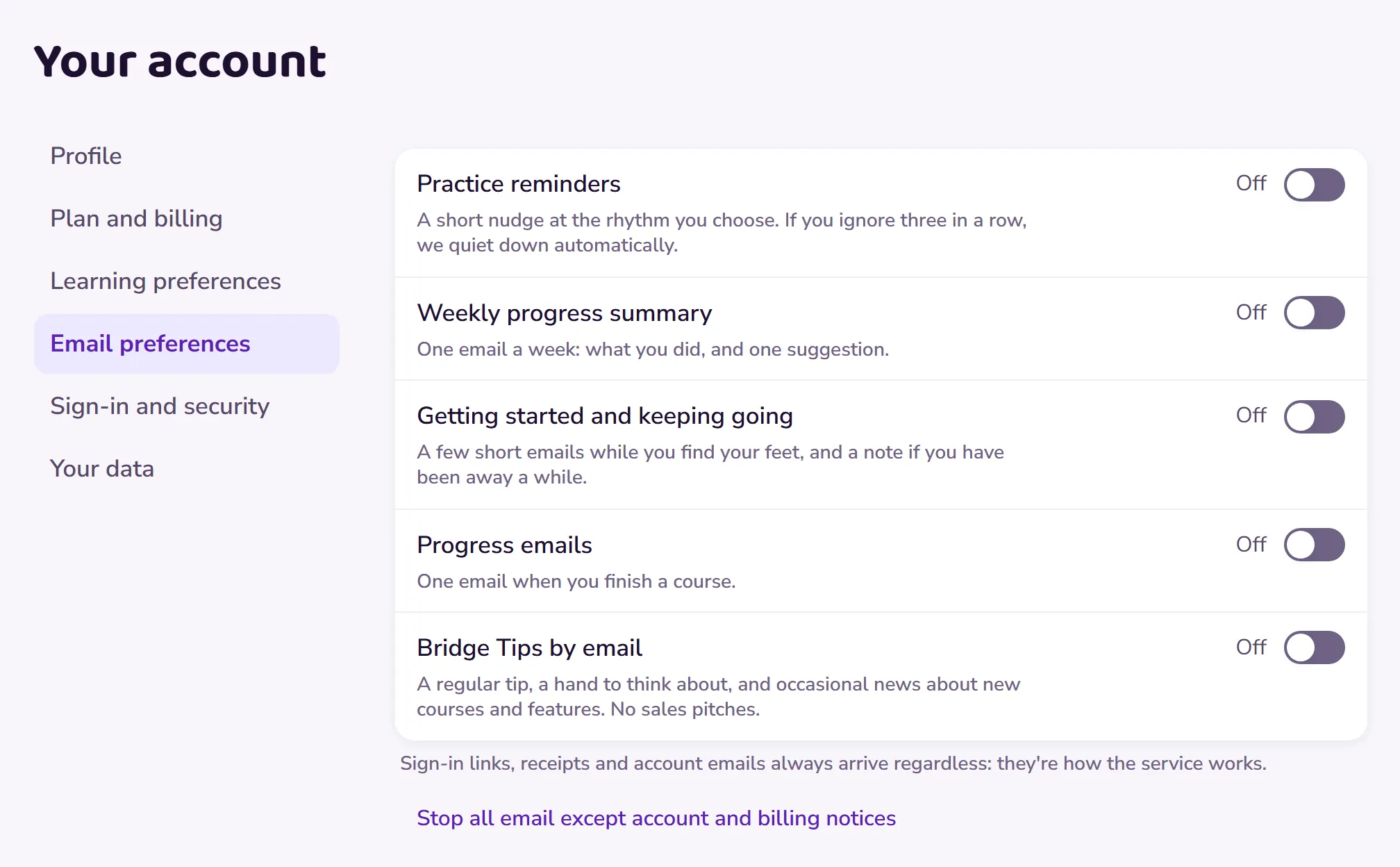
Each kind of email has its own switch, and every one starts off: practice reminders (at the rhythm you choose), the weekly progress summary, the emails that help you get started, the one when you finish a course, and our newsletter, Bridge Tips by email. Turn on only the ones you want. If you ignore three reminders in a row, we quiet down automatically.
 Open this picture full size.
 Step 2: each kind of email has its own switch. -
Sign-in links, receipts and account emails always arrive regardless: they’re how the service works, not marketing.
-
Spotted something broken, or have a thought to share? Go to Settings → About & support, and choose Report a problem or Give feedback.
 Open this picture full size.
 Step 4: the report and feedback rows live in Settings. -
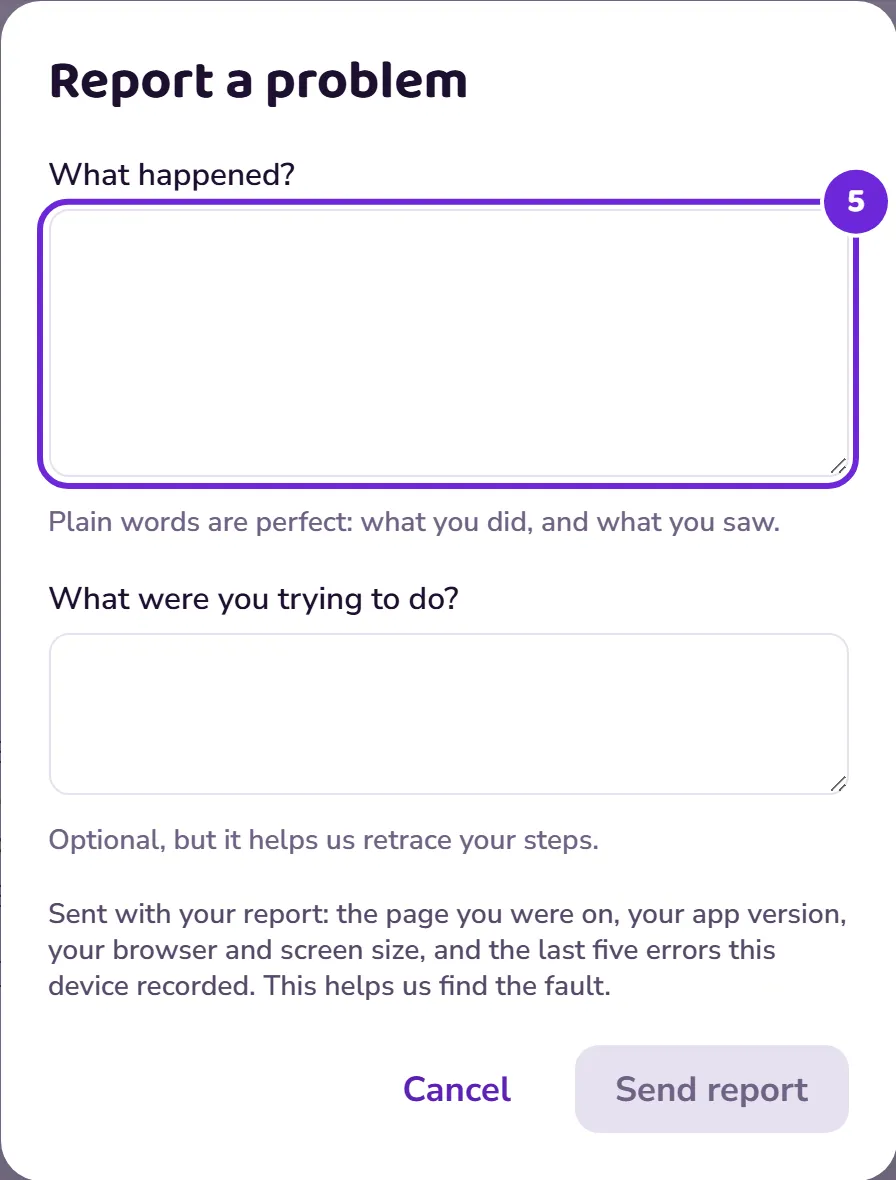
Write what happened in your own words. The dialog shows you exactly what technical context travels with your report before you send it, and there are no screenshots or anything hidden.
 Open this picture full size.
 Step 5: the dialog lists exactly what will be sent with your words. -
Send it. It comes straight to us. A person reads every report and every piece of feedback.
Think a particular hand is wrong? Use Report a problem and tell us which lesson or deal, or email reportadeal@bridgeunlocked.com. See A hand looks wrong.