A password is optional in Bridge Unlocked. The email link always works, with or without one; a password is simply a second way in for the days you prefer it.
-
You can set a password the day you join, or any time afterwards. You can change your mind at any time.
-
When joining: on the welcome screen, choose the password option and type one in. Before you rely on it, read the note below about your first emailed sign-in link.
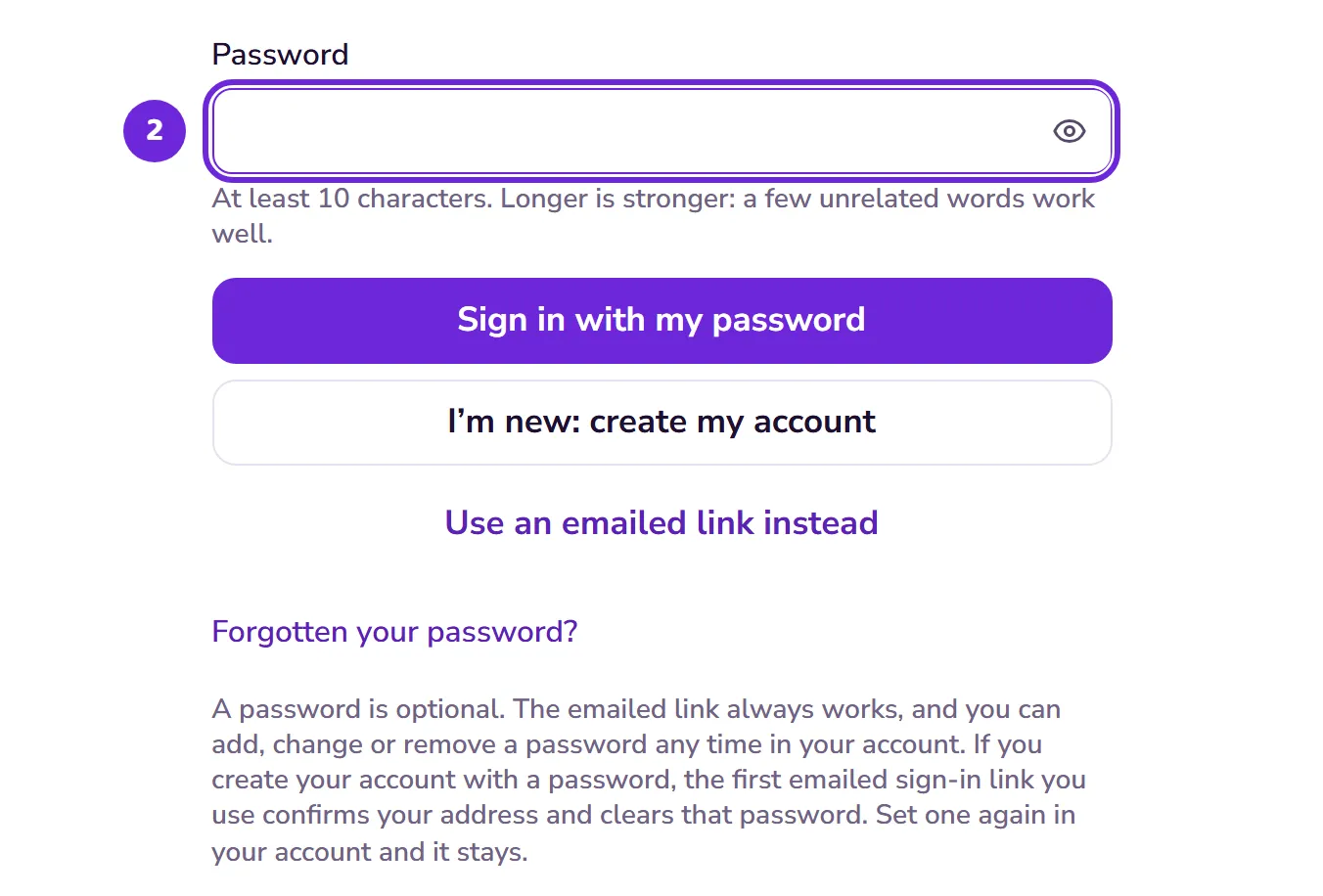 Open this picture full size.
 Step 2: the password option sits on the welcome screen. -
Already have an account? Go to Settings → Account → Sign-in and security.
-
Set or change your password there. Changing it takes effect immediately.
 Open this picture full size.
 Step 4: passwords live on the sign-in and security page. -
From then on, sign in with your email address and password wherever you like. Once your email address is confirmed, the email link keeps working alongside it.
-
Forgotten the password? No drama: the email link signs you in anyway, so you’re never locked out.
Joined with a password? Your first emailed sign-in link clears it. Choosing a password does not confirm that the email address is yours. So the first time you sign in with an emailed link, that link confirms your address and clears any password set before it, including one you changed after joining. The link still signs you in, and it signs you out anywhere else you were signed in. Your password no longer works, and Sign-in and security shows it as not set. Set a password again there: from then on it stays, and the email link works alongside it.
The one exception: resetting your password from the email that Forgotten your password? sends also confirms your address. The new password stays, and later sign-in links leave it alone.
Joined with an emailed link? Your address was confirmed from the start, so any password you add stays.